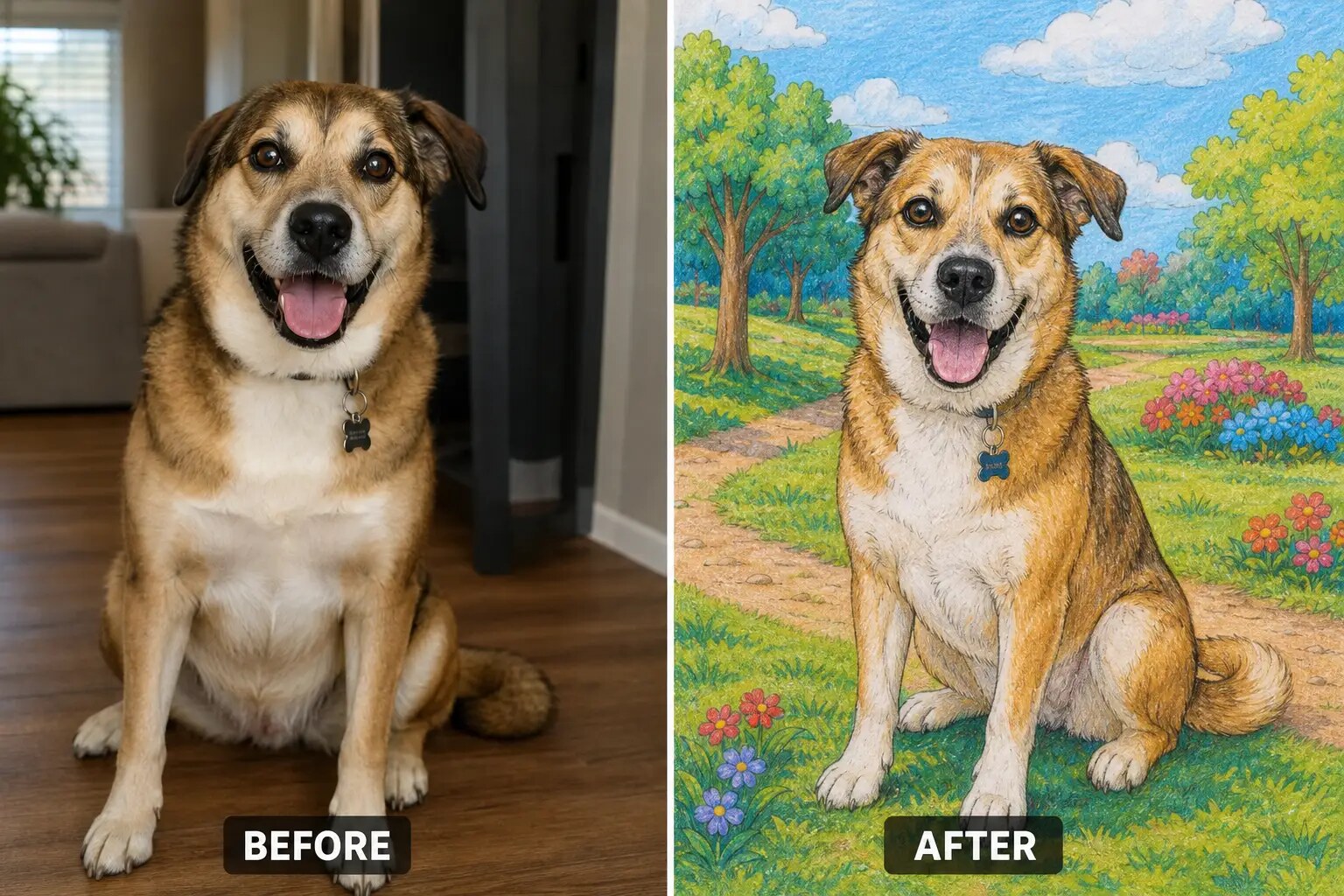
Transforming a beloved picture into a coloring page is a creative way to engage children and spark their imagination. Whether it’s a family photo, a pet, or a favorite cartoon character, turning a picture into a coloring page provides a unique opportunity for artistic expression. This process is straightforward, allowing you to create an enjoyable and personalized activity for kids. In this guide, we’ll explore how you can efficiently turn a picture into a coloring page, ensuring it’s easy to print and use.
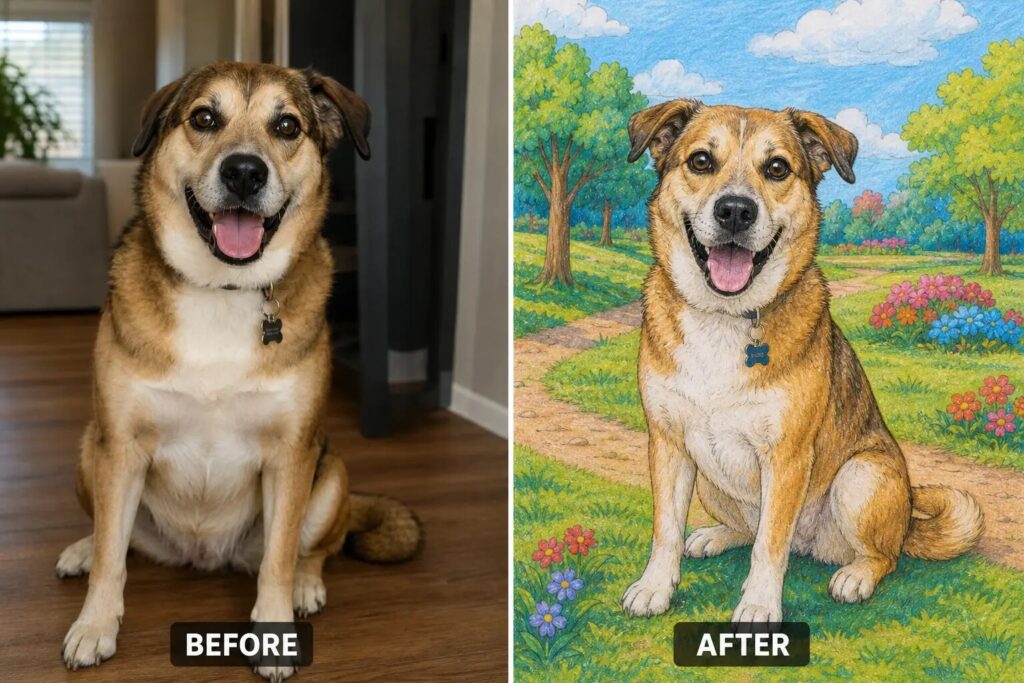
Choosing the Right Picture for Coloring Pages
The first step in turning a picture into a coloring page is selecting the right image. Not all pictures are suitable for this purpose. Look for images with clear outlines and defined shapes. Here’s what to consider:
- Simplicity: Choose images that aren’t overly complex. Simple shapes and bold lines translate better into coloring pages.
- Contrast: Pictures with high contrast between the foreground and background work best. This makes it easier to distinguish the outlines when you convert them.
- Theme: Think about the interests of the children who will be using these coloring pages. Animals, nature scenes, and cartoon characters are popular choices.
Once you’ve chosen the perfect image, the next step is to convert it.
Converting Your Picture to a Coloring Page
There are several methods to effectively convert a picture into a coloring page. Here are two of the most common approaches:
Using Online Tools
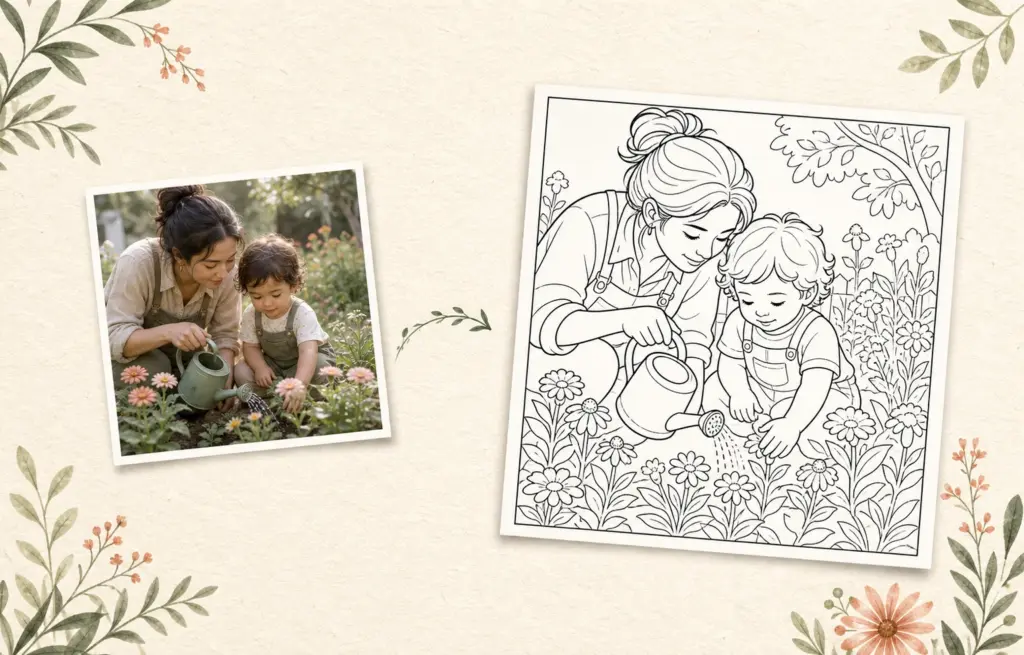
Many online tools allow you to upload your image and convert it to a coloring page automatically. Here’s a simple process:
- Upload Your Image: Find a reliable website that offers this service. Websites like “Coloring Page Creator” or “PicsArt” can be helpful.
- Adjust Settings: Some tools let you adjust the outline thickness or add filters to enhance the image. Play around with these settings until you achieve a satisfactory look.
- Download: Once you’re happy with the result, download the image in a printable format, usually PDF or PNG.
Manual Conversion With Software
If you prefer more control, you can manually convert the image using graphic design software like Adobe Illustrator or free alternatives like GIMP. Here’s how:
- Open Your Picture in the Software: Start your graphic design software and open the image.
- Trace the Image: Use the ‘Pen Tool’ or ‘Trace Bitmap’ feature to create outlines over the image. Focus on capturing the main features while simplifying details.
- Remove the Original Image: Once you have your outlines, delete the original picture, leaving only the traced lines.
- Save Your File: Export your final design as a PDF or PNG for printing.
Printing Your Coloring Page
Now that you have your coloring page ready, it’s time to print it. Here are some tips to ensure the best results:
- Paper Size: Most coloring pages fit well on standard 8.5 x 11-inch paper. If you’re using a larger image, consider resizing it before printing.
- Printer Settings: Set your printer to the highest quality for optimal results. If you’re using a color printer, ensure that it’s set to print in grayscale to avoid colored ink.
- Test Print: Before printing multiple copies, do a test print to check the clarity of the outlines. Adjust the image if necessary.
Engaging With Coloring Pages in the Classroom
Once you’ve printed your coloring pages, think about how to incorporate them into lessons or activities. Here are some engaging ideas:
- Theme Days: Align coloring pages with classroom themes or subjects. For example, use animal pictures during a biology unit or historical figures during a history lesson.
- Art Projects: Encourage students to decorate their coloring pages with mixed media, such as crayons, markers, or watercolors.
- Group Activities: Have students work in pairs or small groups to color a large image, promoting teamwork and collaboration.
By integrating these coloring pages into your teaching, you provide students with a tactile learning experience that reinforces concepts while allowing for creativity.
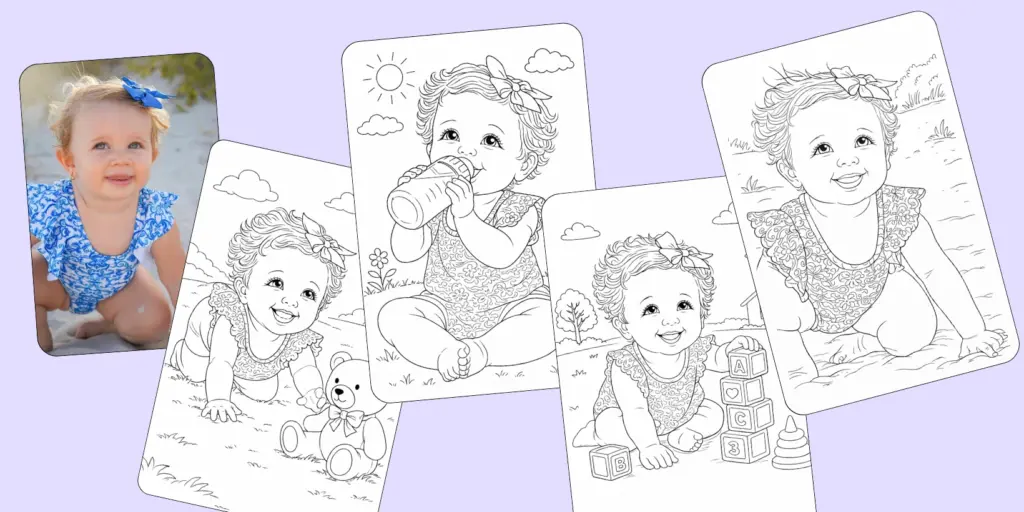
Editable Coloring Pages for Personalization
If you want to add a personal touch, consider creating editable coloring pages. This allows for customization depending on the child’s interests or the classroom theme. Here’s how:
- Select a Base Image: Start with a base picture that can be modified.
- Use Editable Formats: Tools like Canva or Adobe Illustrator allow you to create layers, making it easier to add or remove elements.
- Customize: Add names, dates, or specific themes relevant to your students, such as seasonal holidays or school events.
- Download and Print: Once personalized, download your coloring page and print it as usual.
Using editable coloring pages allows for a more tailored experience, ensuring that the activity resonates with the children involved.
Creating coloring pages from pictures is not only fun but also encourages creativity and self-expression. By following these steps—choosing the right image, converting it, printing effectively, and engaging students—you can easily turn a picture into a coloring page that is both enjoyable and educational. One final tip: always choose high-resolution images to ensure the best quality when printed.
